Sign-up for 30 days free trial, no credit card needed.
Gérer son stock est essentiel pour garder une vision claire de son activité, éviter les ruptures et suivre la rentabilité de ses produits.
Avec Fiduly, vous pouvez suivre facilement vos entrées et sorties de stock, sans complexité.
Managing inventory is essential to keep a clear view of your business, avoid stockouts and track the profitability of your products.
With Fiduly, you can easily track your stock entries and exits, without complexity.
Create a product and manage its inventory
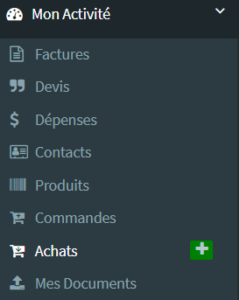
In the navigation menu, go to “My Business”, then “Products”.
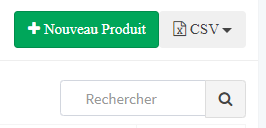
Click “New product” at the top right of the page.
Click “New product” at the top right of the page.
Fill in the product sheet.
Enable the “Manage inventory for this product” option if you want to track available quantities.
Enter the current quantity in stock.
Click “Add” to save the product.
When inventory tracking is enabled, Fiduly updates quantities based on your activity.
A fulfilled customer order decreases inventory.
A delivered supplier purchase increases inventory.
An inventory count allows you to adjust quantities manually.
You can edit the quantity in stock from the product sheet when carrying out an inventory count or correction.
Create a sales order
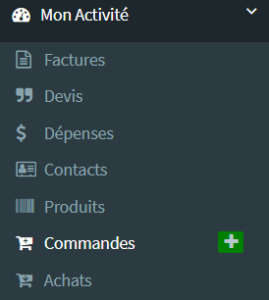
In the navigation menu, go to “My Business”, then “Orders”
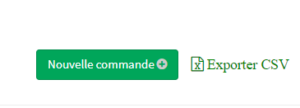
Click on “New order” at the top right of the page
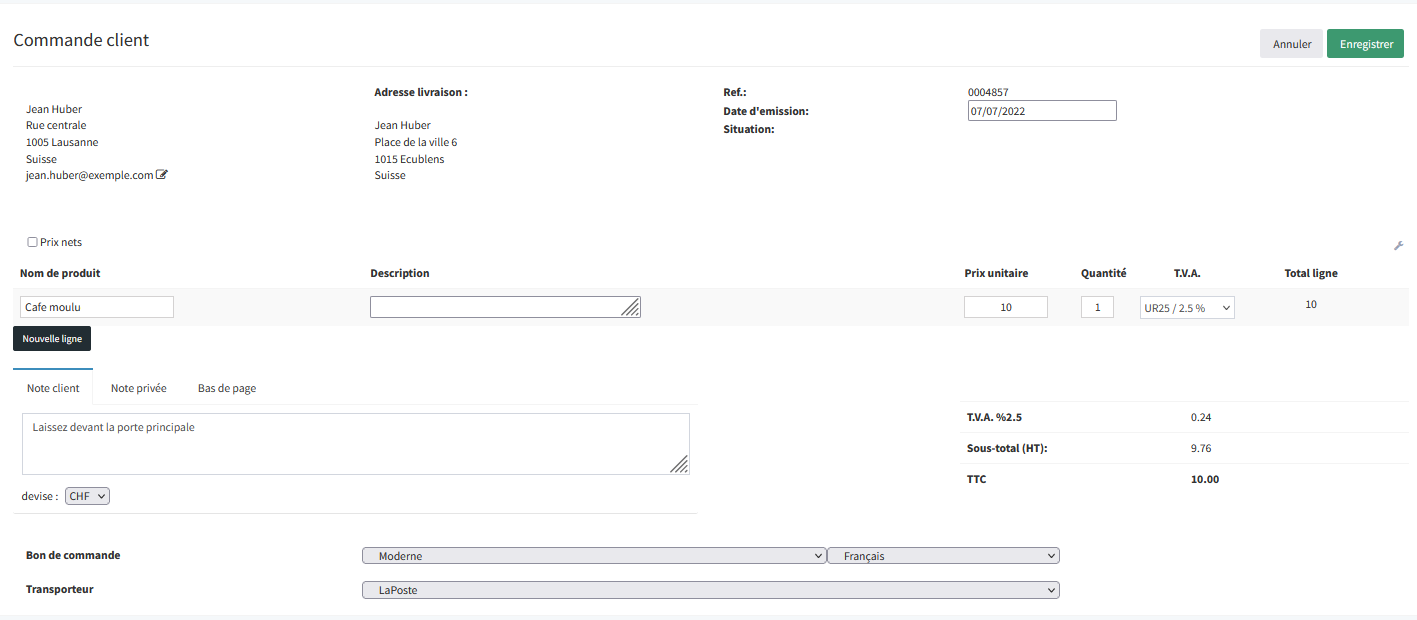
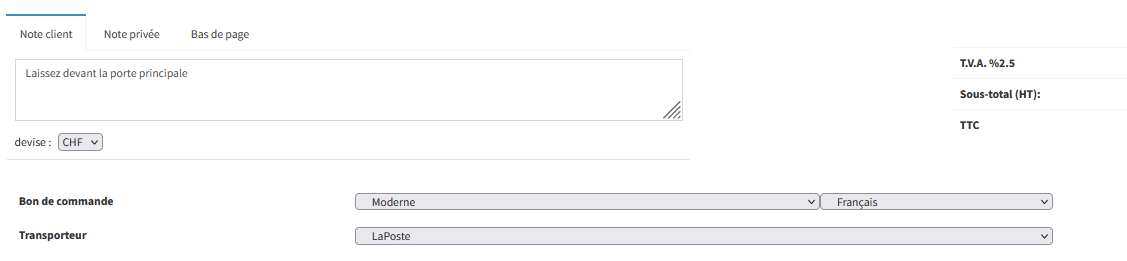
Fill out the order form, choose the shipping carrier and save. If you do not select a shipping carrier, no delivery note will be generated (see question below on how to configure this).
The order is added to the list of sales orders.
Create an invoice from a sales order
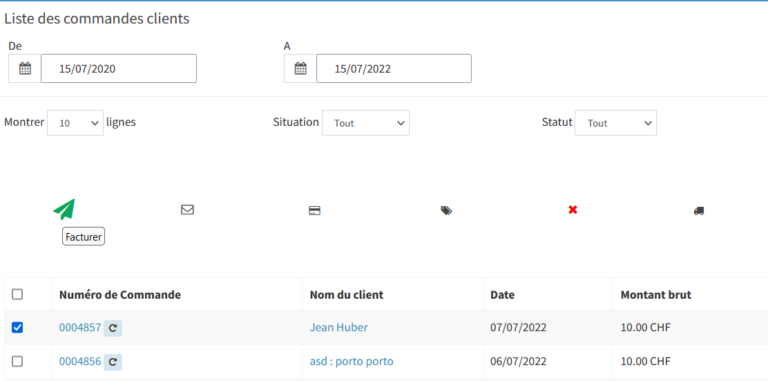
In the list of orders, choose the orders to invoice and click on “Invoice” (paper plane)
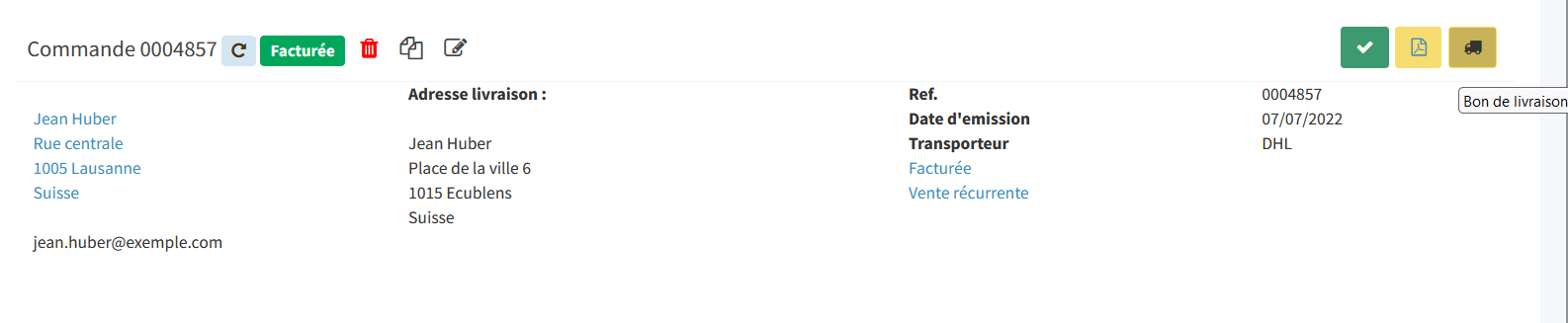
Or click on the order number to view the order, and from this page click on the green “Invoice” button
Track customer orders
In the navigation menu, go to “My Business”, then “Orders”
The list of orders appears with the updated order status: invoiced, delivered, in progress etc.
Create a purchase order
In the navigation menu, go to “My Business”, then “Purchases”
Click on “New PO” at the top right of the page.
Complete the order form, and validate by pressing “save” or “save and send ” to email it to your supplier.
The order is automatically found in the list of purchase orders
You can download the Purchase Order (PO) pdf and send it to your supplier
Track purchase orders
In the navigation menu, go to “My Business”, then “Purchases”
The list of purchase orders appears with the updated status: sent, posted, delivered, canceled.
Generate a delivery note
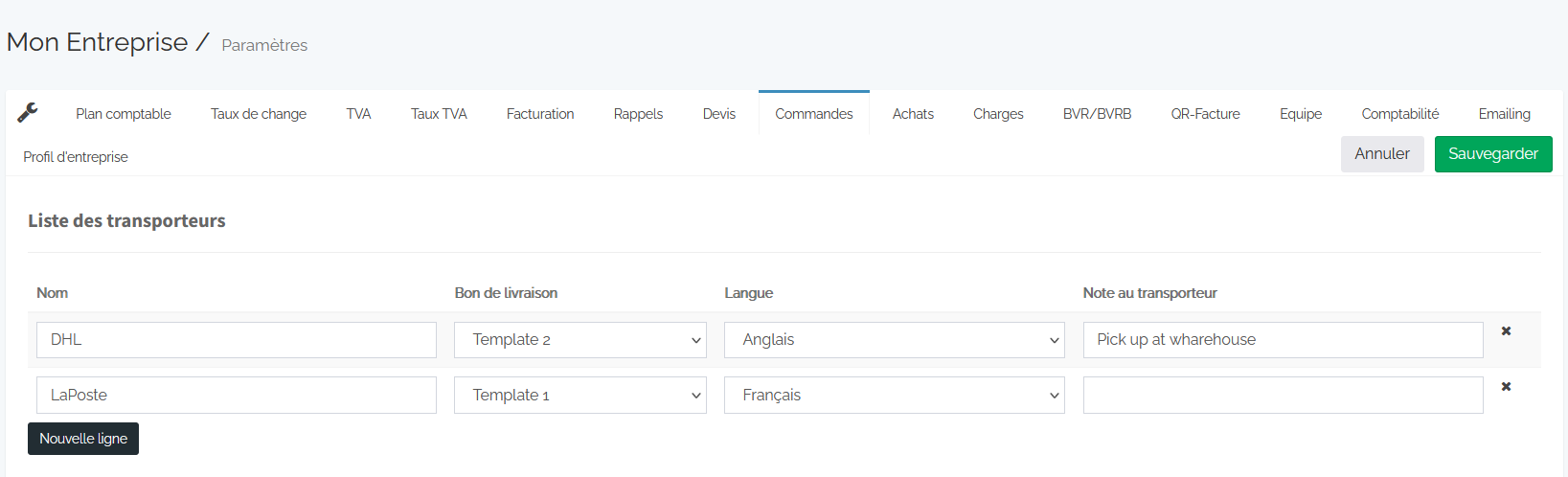
Fiduly allows you to generate delivery notes that accompany the delivery of your goods. You can customize the delivery note according to the carrier and add the customer’s delivery instructions to the note.First you need to configure the list of your carriers (transporters):
In the navigation menu, go to “Settings”
Choose the “Orders” tab, and edit the list of transporters. You can choose between two voucher templates: “Template 1” on two pages, and “Template 2” on one page.
Press “Update”.
Then, when you add an order, you can choose the carrier (transporter) and the corresponding delivery note will be generated.
To see the delivery note of an order, press the yellow button with the “truck” logo
Frequently asked questions about inventory with Fiduly
Find answers to the most frequently asked questions about products, inventory, customer orders, supplier purchases and delivery notes in Fiduly.
Inventory decreases when a customer order is fulfilled and increases when a supplier purchase is marked as delivered. You can also adjust the quantity during an inventory count.