This guide explains how to manage your customers and contacts in Fiduly. You will find the steps to create or edit a contact, add a delivery address, configure the correspondence language, adjust the payment term, create a quote and view customer follow-up.
Contacts created in Fiduly can then be used for your quotes, invoices, orders, delivery notes and commercial follow-up.
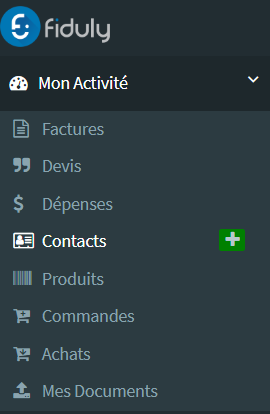
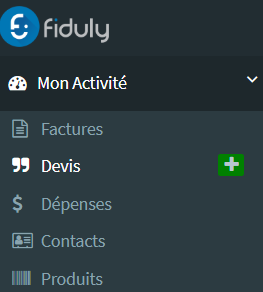
On the left-side navigation menu choose « My business » / « Contacts ».
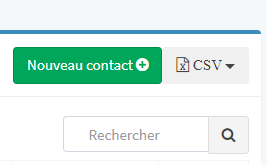
Click on «New contact».
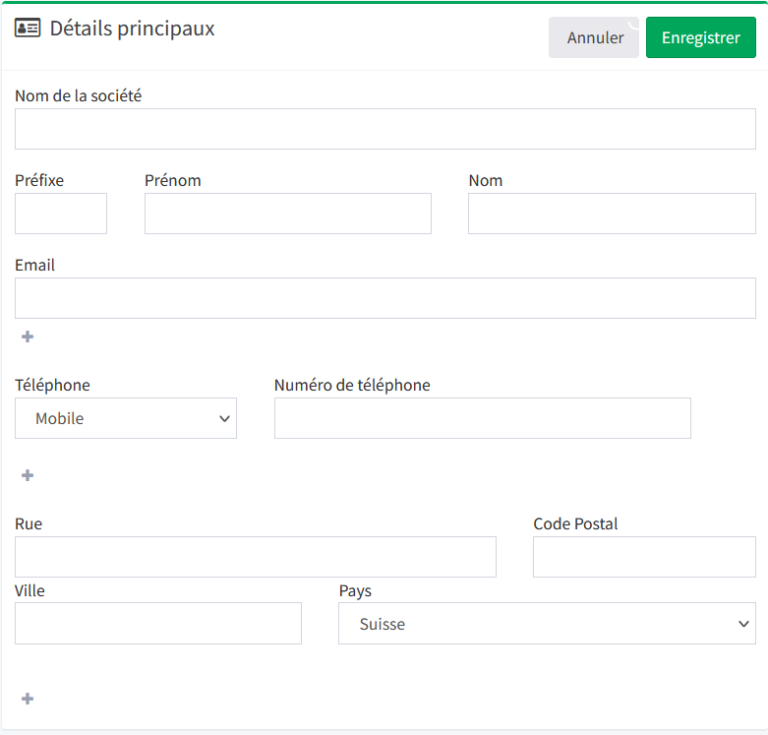
Complete the contact form and click on “Save”. The contact is automatically saved in the contact list.
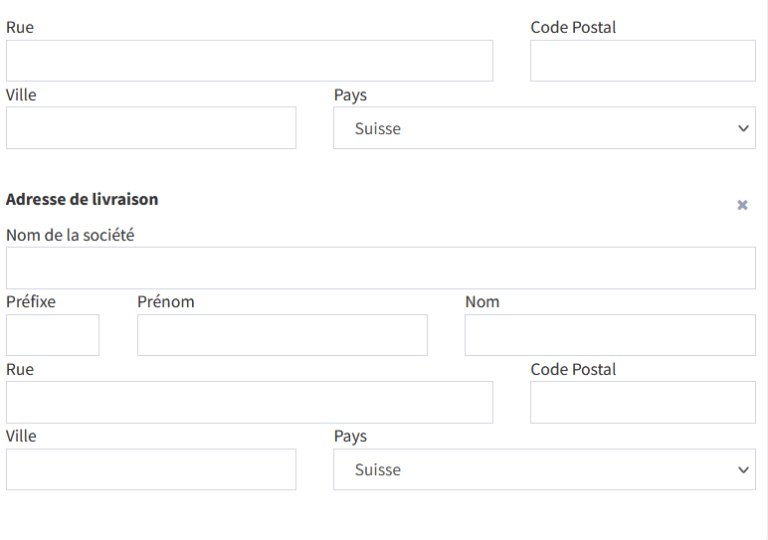
If you want to add a delivery address (which will be on orders and delivery notes), click on +
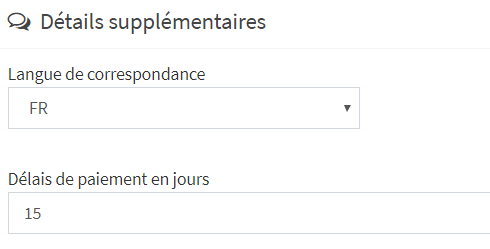
In the “additional details”, you can enter the language of correspondence (for all your quotes/invoices), and modify the payment period, if you wish to grant a period other than the default.
Generate a quote to a customer
On the left-side navigation menu choose « My business » / « Quotes».
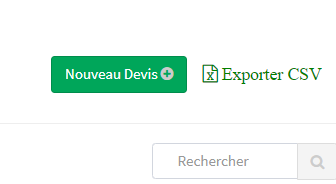
On the page, click on «New quote».
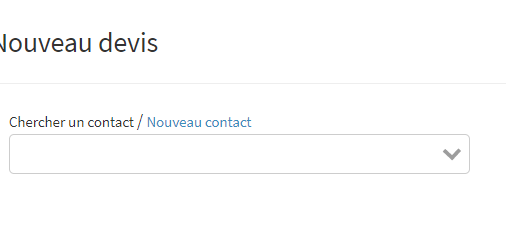
Lookup an existing contact or create a new one
Fill in the required fields and click on “Save” for a simple save, “Save and send” to send the quote.
It is also possible to send a quote from the contact list. Open the “Action” window on the desired contact and click on “Quote”.
Request a deposit on a quote
Request a deposit on a quote
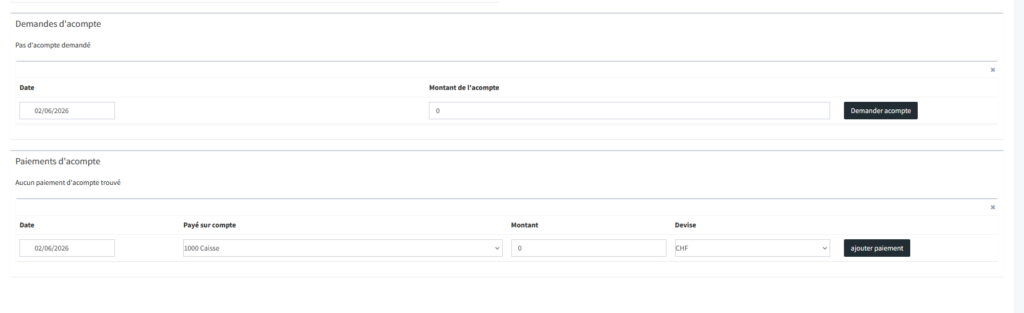
Fiduly allows you to manage deposit requests directly from a quote. This feature is useful when you want to request a partial payment before starting a service, project or order.
Once the quote has been created and its status changed to “Sent”, you can edit it and add a deposit request.
Open the relevant quote.
Check that the quote has the status “Sent”.
In the “Deposit requests” section, add a date and the amount of the requested deposit.
Save the quote.
The quote PDF is then updated with the deposit request information. If the QR-bill is configured, Fiduly can also add a QR payment section to make it easier for your customer to pay the deposit.
The deposit payment can then be tracked in Fiduly, either manually or via bank reconciliation. When the payment is received, Fiduly allows you to track the payment and manage the entries related to the deposit according to your accounting configuration.
When you generate the final invoice, Fiduly deducts the deposit already paid from the final amount due. This keeps a clear follow-up between the quote, the deposit received, the payments and the final invoice.
Manage customer accounts
On the “Contacts” page, click on the desired contact in the list.
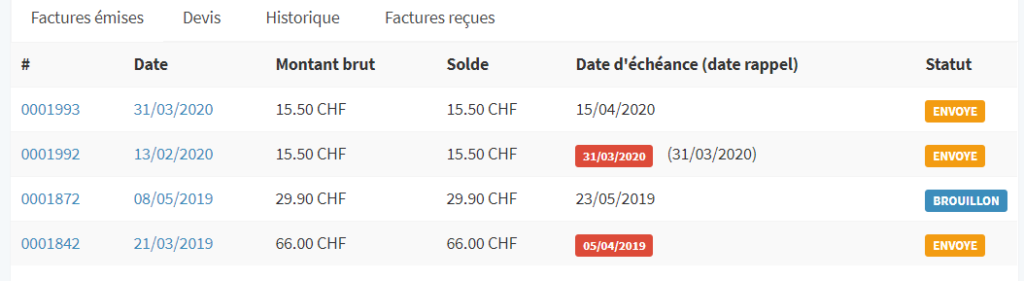
You have access to the customer’s data and their history (invoices issued, received, quotes) as well as their unpaid balance, credits and turnover.
Frequently asked questions about customers and quotes with Fiduly
Find answers to the most frequently asked questions about contacts, customers, quotes, delivery addresses, payment terms and customer follow-up in Fiduly.
Yes. Once the quote has the status “Issued”, you can edit it and add a deposit request with a date and an amount. The quote PDF is updated and can include a QR payment section if the QR-bill is configured.
A deposit payment can be tracked manually or via bank reconciliation. On the final invoice, Fiduly deducts the deposit already paid from the remaining amount due.